
Sponsors




Add a Logo to My Slide Show?
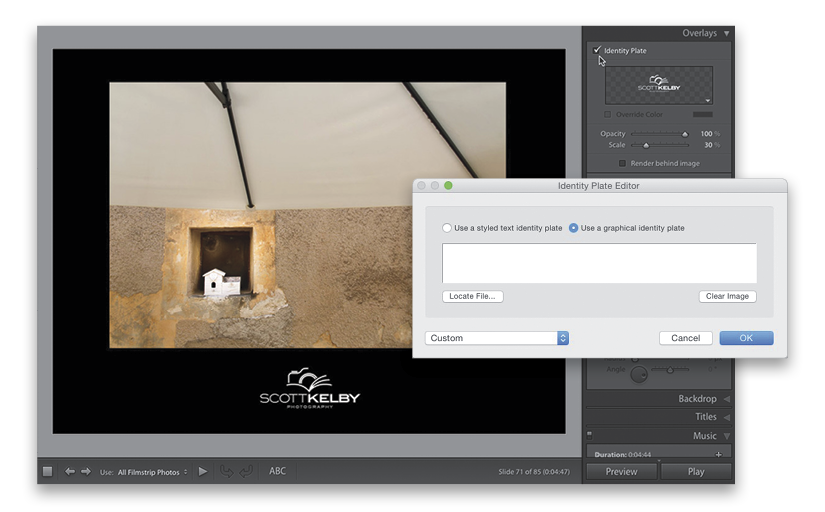
Go to the Overlays panel (in the right side Panels area) and, at the top, turn on the Identity Plate checkbox. Click on the little down-facing triangle in the bottom-right corner of the Identity Plate preview (the checkerboard rectangle) and choose Edit, which brings up the Identity Plate Editor (shown in the inset above). Click on the Use a Graphical Identity Plate radio button, then click the Locate File button, find your logo on your computer, and then click OK to import that logo (the shape of my logo prevents it from appearing in the long, thin, horizontal preview area, so that’s why it looks like it’s empty). Click OK and your logo will appear onscreen. You can click-and-drag it wherever you’d like it, as well as resize it by dragging one of the corner handles, or by using the Scale slider in the Identity Plate section of the Overlays panel. There’s also an Opacity slider there if you want to lower the opacity of your logo.