
Sponsors




Change My Background Color?
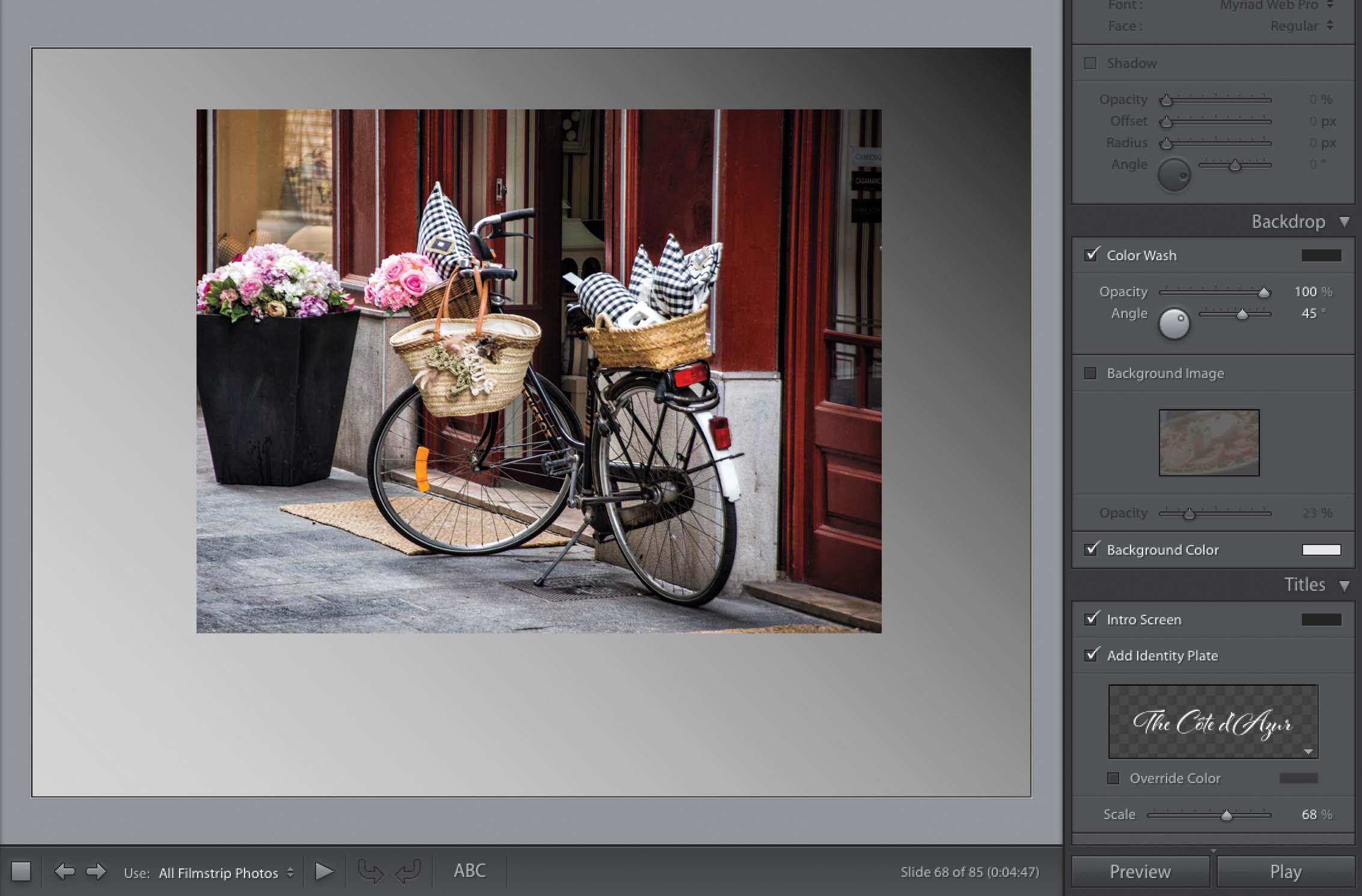
Go to the Backdrop panel, in the right side Panels area, and you’ll see the Background Color checkbox at the bottom. Click on the color swatch to the right to bring up the Background Color picker, where you can choose any background color you’d like (by default, it’s going to look like you can only choose black, white, or shades of gray, but if you click-and-drag the HEX slider on the far right upward, you’ll see all the colors appear). Besides a solid color, if you leave the Color Wash checkbox (at the top of the panel) turned on, you’ll get a background gradient that graduates from the Color Wash color (you pick this by clicking on its color swatch) to whichever color you have chosen for the Background Color. So, as you can see above, I went from the black Color Wash to a gray Background Color. Up near the top of the panel, you can also choose the direction of your gradient by clicking-and-dragging on the Angle dial.