
Sponsors




Customize My Cover?
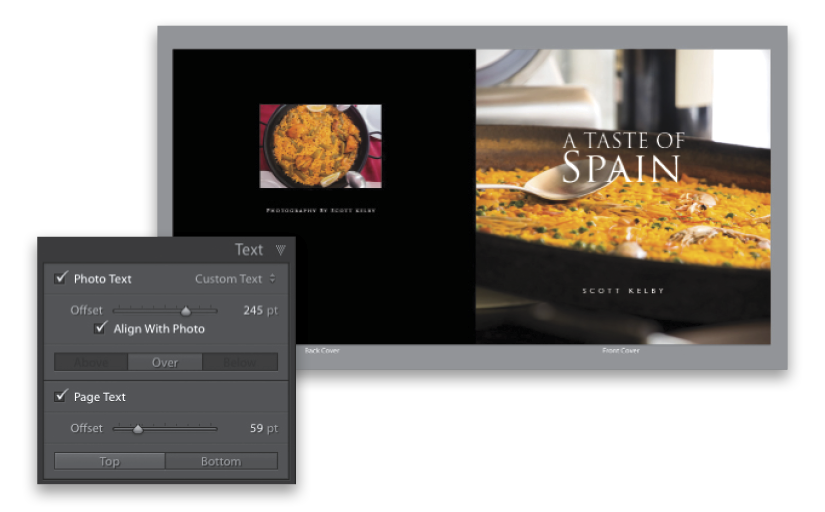
The front cover of your book is treated like a two-page spread (not two separate pages
like the rest of the book), but it does have a bunch of templates you can choose from—just click on the cover, and then click on the little black button with the down-facing arrow, in the bottom-right corner, and the Modify Cover pop-up menu with cover templates appears. Click on the one you want and it applies it. If you use the default template (like I did here), it lets you put one photo on the front, and one on the back (which I shrunk down in size using the trick I showed you on how to create a custom page on page 191). Also, all of these these templates have some text ready to go, just be sure to turn on the Photo Text checkbox in the Text panel (as seen in the inset above), in the right side Panels area. I also ended up changing the background color to black, here, in the Background panel.