
Sponsors




Search for Photos by Name or Date?
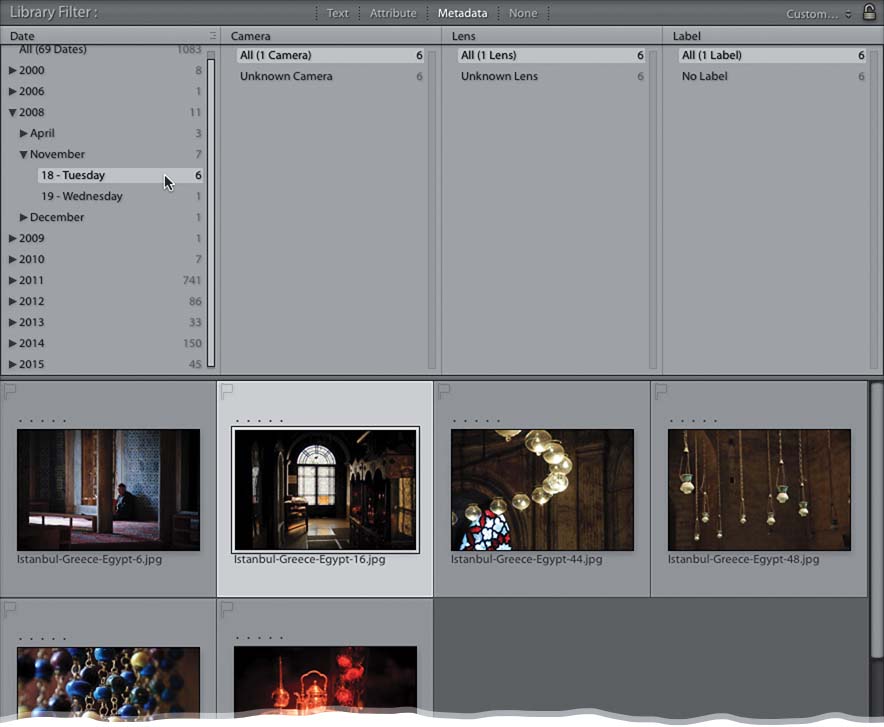
If you don’t see the Library Filter bar across the top of your thumbnail grid, start by making that visible by pressing the backslash key (\) on your keyboard. Then, choose the collection you want it to search through by clicking on it in the Collections panel (or have it search all your photos in Lightroom by going to the Catalog panel near the top of the left side Panels area and clicking on All Photographs). Now that you’ve told Lightroom where you want to search, let’s start searching. If you want to search by typing in a name, click on the word “Text” and a text entry field appears to its right. Just type in the word you want to search for. Any images that have that word in its name, or as a keyword, or a caption, will instantly appear. If you want to search by date, then click on Metadata up in that Filter bar instead, and it will immediately display lists of search results based on the default criteria listed at the top of each of the four columns (you can choose different criteria by clicking on the name of the criterion and a huge pop-up menu of options appears). By default, Date is in the first column, and it lists all the dates of images where you’re searching. To see just those images from a particular year, click on the year. To narrow things down further, click on the little black arrow that appears to the left of the year, and it shows you the months in that year that you have photos from, and how many photos you have in each month. Click on any month to see just the images from that month. Click the little arrow again and you can narrow it down even farther—to the particular day you took the shot. Here, you can see I quickly found the six images I took on Tuesday, November 18, 2008. Pretty amazing, eh?