
Sponsors




Do Basic Sharpening?
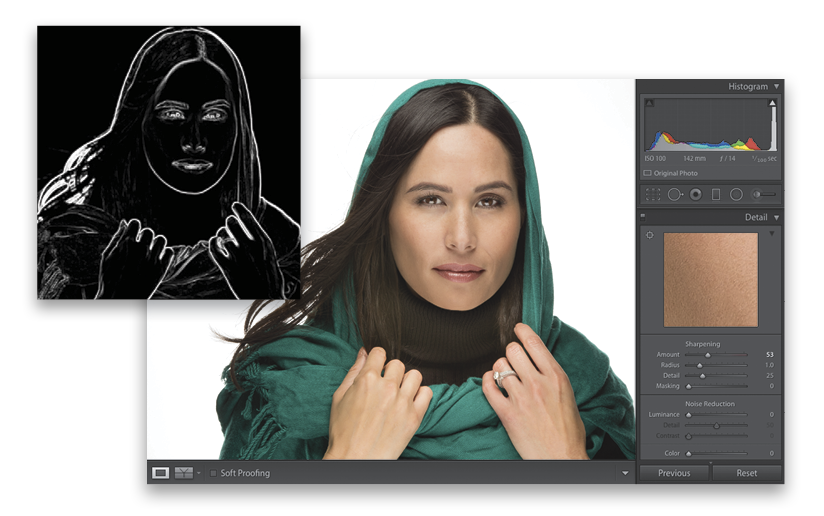
Go to the Detail panel (in the Develop module’s right side Panels area) and the Sharpening controls are at the top. The Amount slider controls the amount of sharpening (please forgive me for explaining what this slider does). The Radius slider determines how many pixels out from an edge the sharpening will affect, and I usually leave this set at 1.0. If I run into an image that needs to be super-sharp, I’ll occasionally move it up to 1.2, or even as high as 1.3, but that’s about as high as I’ll go. The next slider down is Detail. I recommend leaving this set as-is (I’m not usually a fan of default settings, but this one is actually good). This slider, set where it is, allows you to apply a higher amount of sharpening without seeing halos around the edges of objects in your image (a typical side effect of too much sharpening), so it’s an improvement on Photoshop’s Unsharp Mask filter. If you want sharpening that looks more like Photoshop’s (hey, ya never know), then raise this slider to 100 and it’s pretty much the same (you can expect to see halos fast if you set the Amount slider too high). Last is the Masking slider. I only use this when sharpening objects where I don’t want the entire image sharpened equally—I just want the edges sharpened. For example, if I’m sharpening a woman’s portrait, I want to sharpen her eyes, eyebrows, teeth, lips, etc., but avoid sharpening her skin because it brings out texture we don’t want to enhance. By raising the Masking amount, it narrows the sharpening to just the edges. Press-and-hold the Option (PC: Alt) key as you drag the slider to see what it’s affecting. Areas that turn black (as seen in the inset above) are not being sharpened—only the white areas get sharpened.