
Sponsors




Add Text to a Slide?
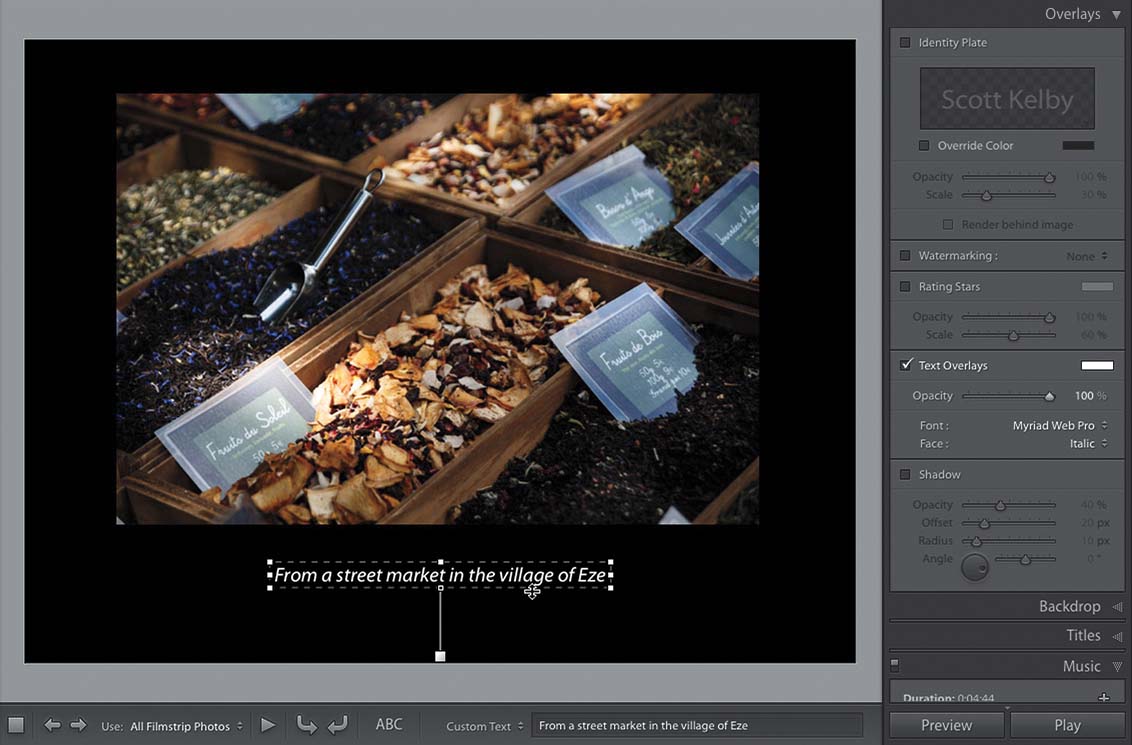
Go to the Overlays panel, in the right side Panels area, and turn on the Text Overlays checkbox. Now, look down in the toolbar, below the Preview area, and you’ll see an ABC button. Click on that button and the Custom Text field appears to the right of it, where you can type in the custom text you want (as seen here), or you can click-and-hold on the words “Custom Text,” and a pop-up menu appears where you can choose things like captions or camera data to be automatically pulled from the image’s metadata and displayed under it instead (your choice). Once your text is in place, you can choose the Font and Face style in the Text Overlays section of the Overlays panel, along with the color (just click on the color swatch to the right of Text Overlays). To resize the text, just click directly on it, and a bounding box will appear around it. Click on a corner and drag outward (or inward) to resize. You can also click-and-drag the entire text block to reposition it, including dragging it right on top of your image.