
Sponsors




Overlap Images?
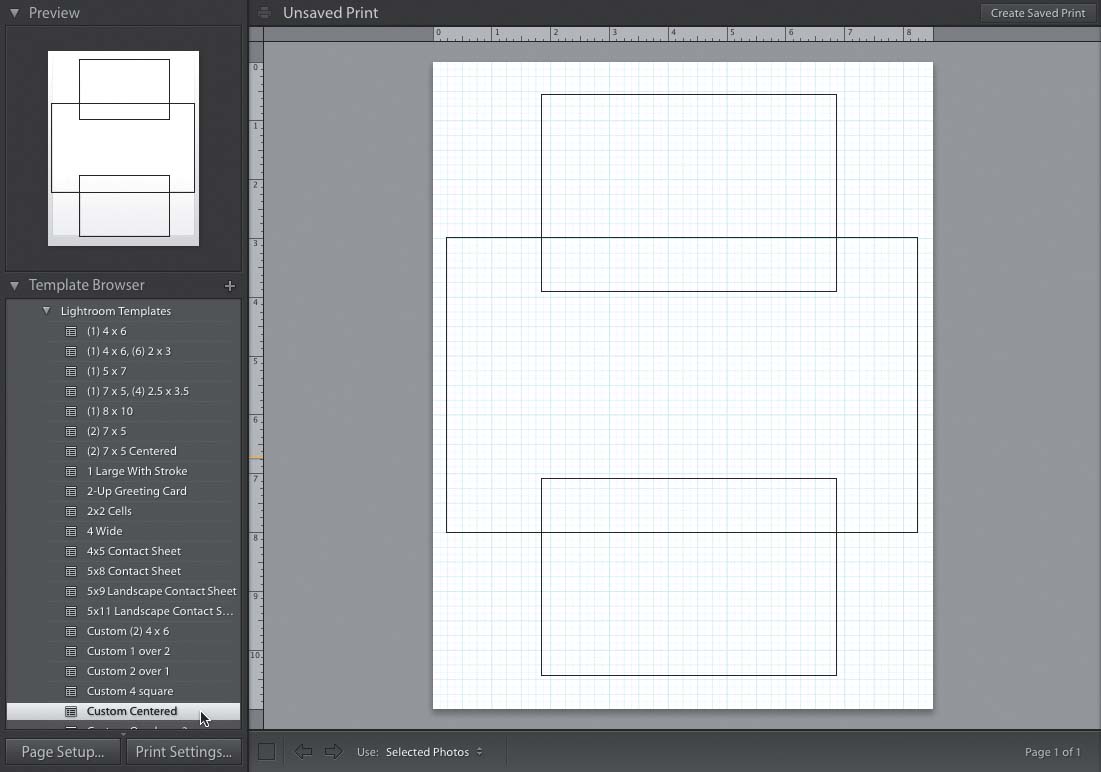
The easiest way to do this is to start by choosing a template that already has an image overlaying another. For example, try clicking on the template called “Custom Centered” over in the Template Browser in the left side Panels area (as shown above). That brings up the layout you see above, with two image boxes overlapping a larger image box. If you only want one image overlapping, just click on the one you want to delete and hit the Delete (PC: Backspace) key. You can resize either of the two remaining boxes by just clicking on them and dragging the corners or sides. Once they’re positioned where you want, at the sizes you want them, drag-and-drop images into those cells right from the Filmstrip at the bottom. To change the order of the images (which image appears in front of which), Right-click on an image and choose either Send to Back or Send Backwards (Send Backwards moves it back one level at a time, which is handy if you have more than two images. With just two, it doesn’t matter). There are also Send Forwards and Bring to Front choices, which bring your image forward or to the very top of the stack.