
Sponsors




Upload Directly to Flickr or Facebook?
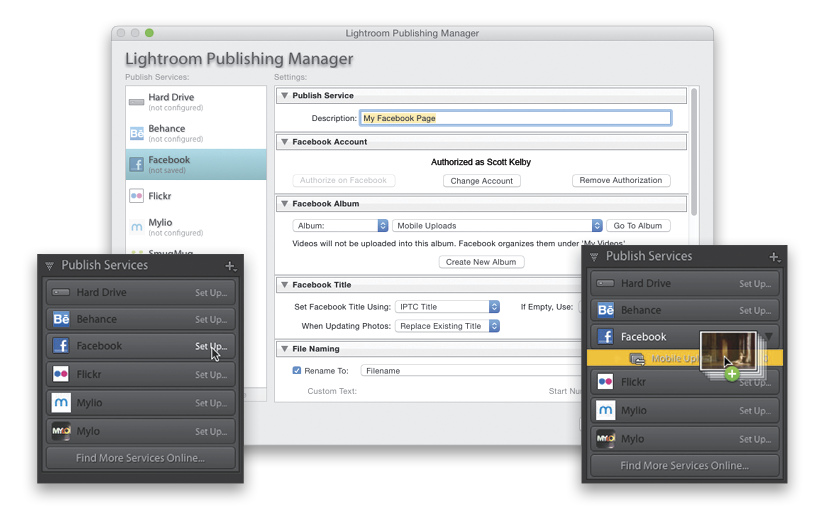
Lightroom CC lets you do a “one-click” publish to some of the most popular online photo sharing sites, including Facebook, Flickr, Behance, and others, and it comes with presets for some already in place—you just have to basically authorize these services to accept your photos directly from Lightroom. To do that, in the Library module, go to the Publish Services panel (in the left side Panels area) and click on the Set Up button for the service you want (as seen in the inset above left) to bring up the Publishing Manager (seen above center). This is where you authorize the sharing site (in the example above, my Facebook page) to accept images you choose to send there directly from Lightroom. It’ll ask you which album you want them to go into (well, it does for Facebook anyway), along with some other simple stuff, and when you’re done, just click the Save button. Now it’s configured and ready to go. To actually publish (send) an image to your Facebook page from Lightroom, just click-and-drag the image directly to that album—it’ll appear under Facebook in the Publish Services panel (as seen in the inset above right, where I’m dragging five images that I want published directly to my Facebook page).