
Sponsors




Remove Spots and/or Specks?
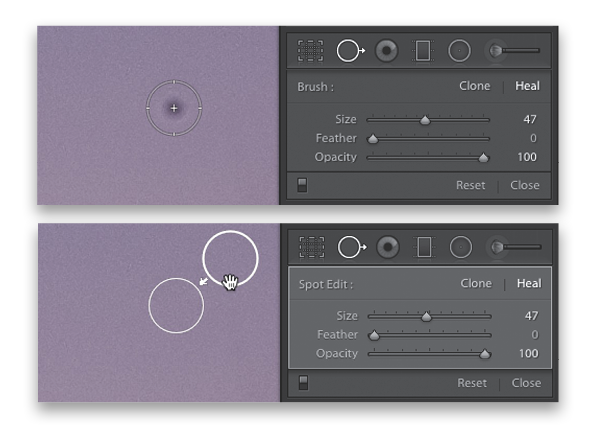
In the Develop module, click on the Spot Removal tool (Q) in the toolbar near the top of the right side Panels area. Resize your brush, so it’s a little bit larger than the speck or spot you want to remove (as seen above top), and just click once. The tool will sample a nearby area to use as a source for the removal (see the second circle on the bottom above? That’s where it’s sampling from). If for any reason the fix looks odd (it picked a bad spot to sample from, which definitely happens from time to time), you can just click-and-drag that second circle—the one it’s sampling from—to a different location to get better results. Also, you can click-and-drag on the edge of the circle to resize it, and you can click-and-drag the first circle (the one where you clicked—it has a thinner border) if you were a little off when you first clicked over the spot you want to fix.