
Sponsors




Search by Keywords?
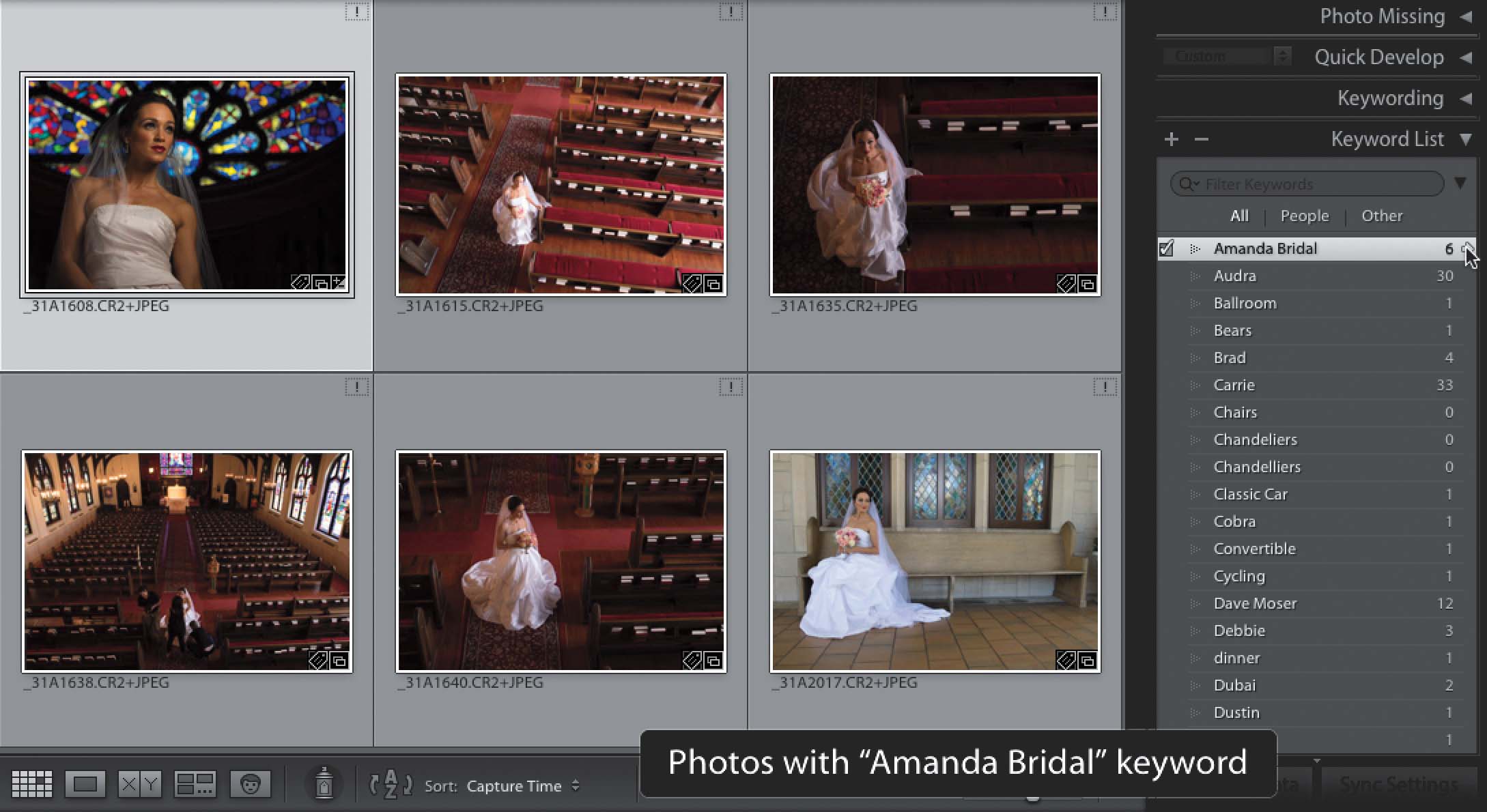
In the Library module, go to the Keyword List panel (in the right side Panels area) and it lists all the keywords you’ve assigned to photos. To the right of each, it shows you how many images have that particular keyword applied. If you want to see only the images that have a particular keyword assigned to them, move your cursor just to the right of the number and a little white arrow will appear. Click on that arrow (as I did here, where I clicked on the one next to the Amanda Bridal keyword), and now only the images tagged with that keyword are visible onscreen. You can also use the Library Filter bar at the top of the Preview area (if you don’t see it, just press the \ [backslash] key on your keyboard). Click on the Text tab, type in the keyword you’re searching for, and only the images that have that keyword applied will appear. The downside to using this is that you have to know which keyword you’re searching for, whereas the Keyword List will show you a list of all the words—when you see the one you want, you just click that right-facing arrow to the right of the number. By the way, the checkbox on the left shows which keywords have been assigned to a particular image, so you might have one image with five different keywords. Also, if you select some images and you see an asterisk beside one of those keywords in the list, it means that particular keyword isn’t assigned to every one of those selected images—maybe just two or three.